In the AI era, leveraging large language models (LLMs) to enhance programming productivity is becoming increasingly common. Instead of relying on expensive international services, developers in Vietnam now have access to FPT AI Marketplace — a domestic AI inference platform offering competitive pricing, high stability, and superior data locality.
This article provides a step-by-step guide to integrating FPT AI Marketplace’s model API into Cursor IDE, enabling you to utilize powerful code generation models directly within your development environment.
1. Create an FPT AI Marketplace Account
- Visit https://marketplace.fptcloud.com/ and register for an account.
- Special Offer: New users will receive $1 in free credits to experience AI Inference services on the platform!
2. Browse the List of Available Models
After logging in, you can view the available models on FPT AI Marketplace.
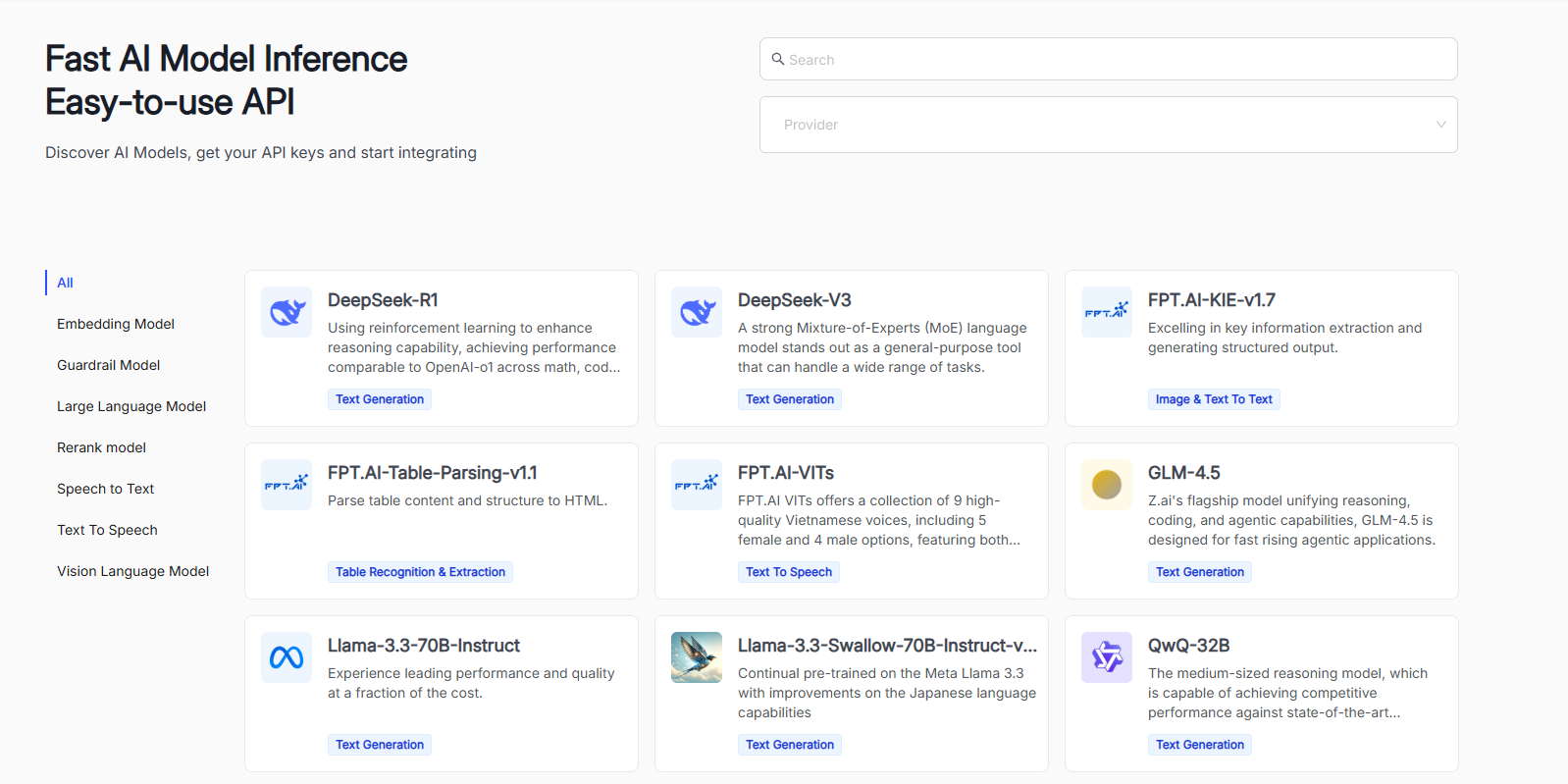
Figure 1: List of available models on FPT AI Marketplace
For optimal code generation results, it is recommended to select models such as Qwen-32B Coder, LLaMA-8B, or DeepSeek.
3. Generate an API Key
Please log in and navigate to https://marketplace.fptcloud.com/en/my-account#my-api-key
 Click “Create new API Key”, select the desired models, enter a name for your API key, and then click “Create”.
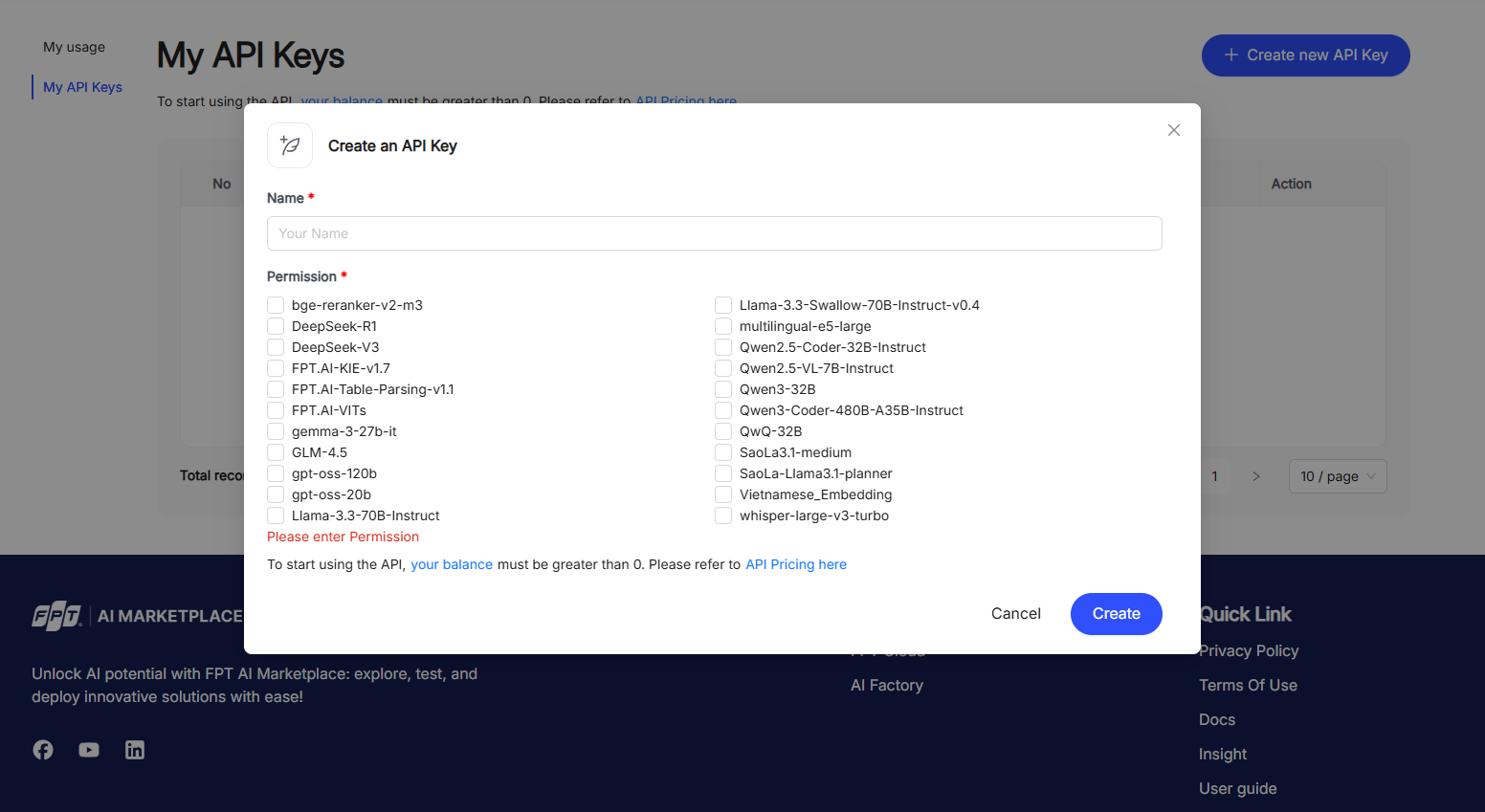
Figure 2: API Key creation interface
Verify the information and retrieve your newly generated API Key.
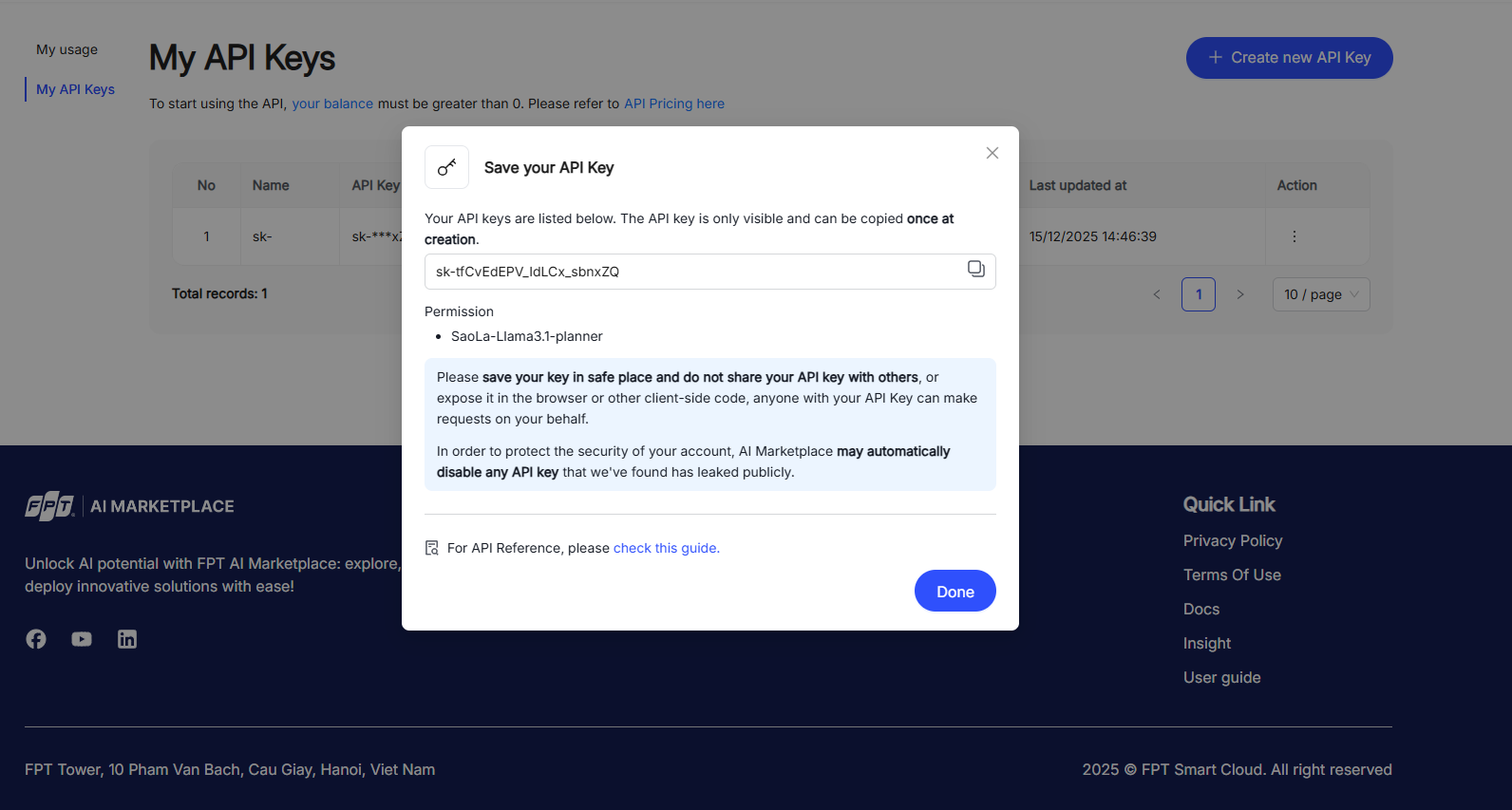
Figure 3: API Key successfully created
4. Configure Cursor IDE with FPT AI Marketplace API
1. Steps to configure:
1. Open Cursor IDE → go to Cursor Settings → select Models.
2. Add Model:
a. Click Add model
b. Add the model (e.g., qwen_coder, deepseek_r1).
3. Enter API Key:
a. In the OpenAI API Key field, paste the API key you generated from FPT AI Marketplace.
4. Configure FPT AI URL:
a. Enable Override OpenAI Base URL
b. Enter the following URL: https://mkp-api.fptcloud.com
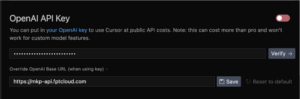
Figure 4: Configuring API Key and Base URL in Cursor IDE
5. Confirmation:
a. Click the Verify button.
b. If Verified Successfully appears, you are now ready to start using the model!
5. Using Code Generation Models in Cursor
You can now:
- Use the AI Assistant directly within the IDE to generate code.
- Ask the AI to refactor, optimize, or explain your existing code.
- Select the model you wish to use.
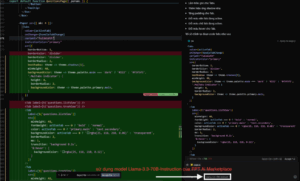
Figure 5: Using the Llama-3.3-70B-Instruction model from FPT AI Marketplace to refactor code
6. Monitor Token Usage
To manage your usage and costs:
- Go to My Usage on FPT AI Marketplace.
- View the number of requests, input/output tokens, and total usage.
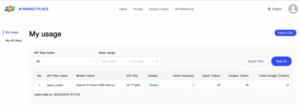
This allows you to see how many tokens you have used, helping you better control and manage your costs.
Conclusion
With just a few simple steps, you can harness the full power of the FPT AI Marketplace. You’ll be able to leverage advanced AI models at a cost-effective rate, accelerate your workflow with fast code generation, intelligent code reviews, performance optimization, and automated debugging. At the same time, you can easily monitor and manage your usage with clarity and transparency.